iPhone Cheapskate

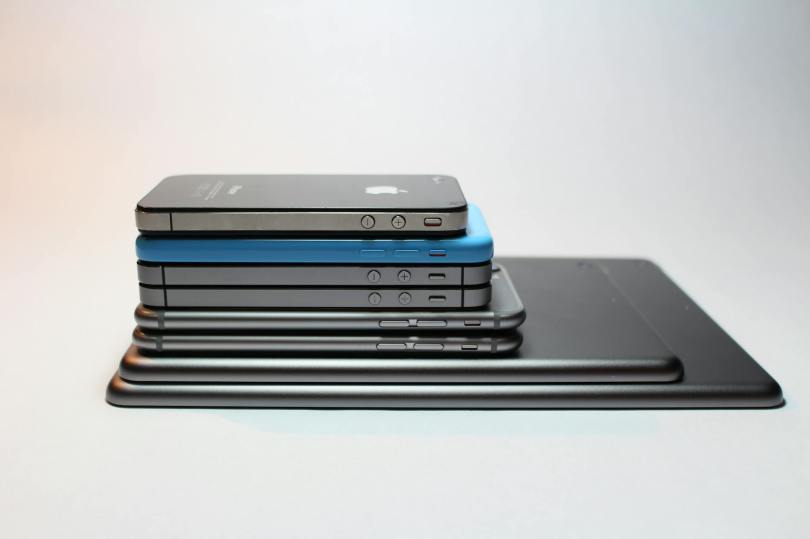
I know Apple devices have a reputation as being premium/pricey devices and so seeing “iPhone” and “cheapskate” in the same sentence is probably controversial, but if you’re a long time owner of Apple devices (4 Mac computers1, 2 iPads, 2 iPhones, one old iPod still ticking), there is a strong ecosystem factor that makes it hard to break free2. Addtionally, the hardware3 is really quite rock solid (if nearly impossible to repair nowadays), so you do get a bit of longevity when you spring for an iDevice.

But let me share with you a new thing I discovered yesterday that may save you from an upgrade that isn’t necessary.

I’ve been struggling with “out of storage” warnings on my iPhone4 for a number of months now. Every time I got one, I checked for the usual culprits:

  • Too many photos/videos on my phone. I try to keep the number very small (often zero) since I use Google Photos to back up any image to the Google cloud. No need for local copies, since I can grab them on demand from the cloud5.
  • Too many photos/videos sent via messaging apps (and I use a bunch: Messenger, WhatsApp, Messages, Slack)
  • Too many downloaded podcasts (listening to podcasts while on road trips or runs is a favorite habit of mine; the offerings of Pushkin are generally very high quality)
  • Too many apps that I used once and then moved on from

And after going through the list, I would normally clear up enough space to quiet the warnings for a while. The last time I got one, i got a little infuriated and deleted 95% of the music I keep on my iPhone because I don’t listen to music on it all that often.

But less than 2 weeks after the extreme purge, I got yet another “storage low” warning. I was a bit exasperated at this…what’s the point of having a phone if I’m spending hours every week reducing its capabilities? No photos, no music, no podcasts? No way!

So I took a much closer look at the “storage” report on the iPhone, and it looked something like this6:
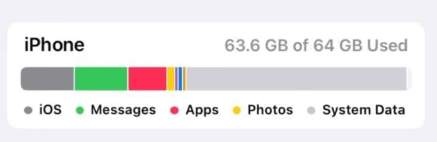
“System Data”, the light grey bar (not to be confused with iOS, the dark grey bar) had grown to take up an ENORMOUS amount (~30GB) of data on my phone. What, exactly is “System Data”, you may ask?
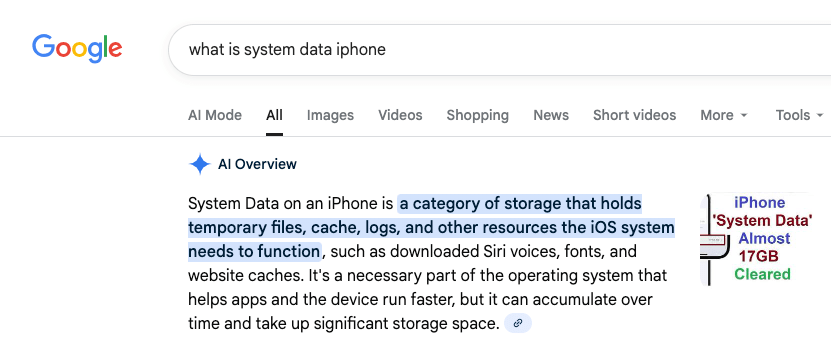
That, it would seem, is a rather accurate description. Once I determined that this stuff was probably expendable, I set out researching how to get rid of it. I’ll save you sifting through dozens of bad videos and terrible advice and cut to the chase. Here’s what my iPhone storage looks like this morning:
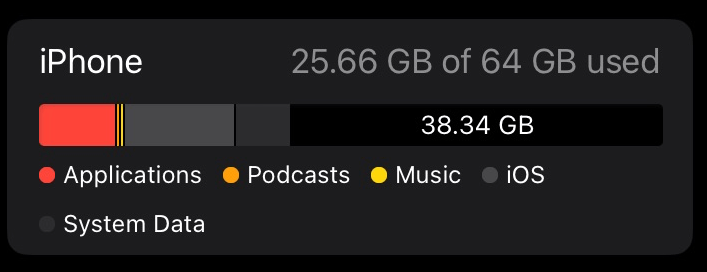
You’re seeing that right — 38GB free, up from 1GB free. “System Data” reduced from around 30GB to 5.75GB. So what did I do?

Rather than spend hours trialing and erroring deleting apps and re-installing them, I went nuclear. I backed up the phone to iCloud and completely erased it7, then restored it. This is an extreme measure that isn’t for everyone but the results are quite clear.

Here’s a non-exhaustive list of why you should be very careful before doing this to prevent loss of data — don’t say I didn’t warn you!

  • you don’t back up your photos/videos anywhere
  • you haven’t backed up your iPhone to iCloud
  • you don’t have your music backed up somewhere (if purchased in iTunes, all can be re-downloaded; if synced from a computer, that can be redone)

Anyway, for me, having migrated phones more than once, I was pretty confident I wouldn’t have much in the way of downsides in doing this. Some things you have to re-do

  • rescan your fingerprint for TouchID
  • retrain Siri to respond to your voice
  • Re-enter your payment cards for Apple Pay
  • Re-authenticate into some/all of applications that require it
  • Resync your music

Anyway, all this to say that before you think you need to upgrade your phone because you’re out of space, maybe take a closer look…

  1. One running Linux MX because it’s over 10 years old, one gifted to me from Wealthsimple, one in the upstairs office that I should probably sell, and one that I’m typing this from (another ancient laptop with a “battery” in name only that should probably get the Linux MX or Chrome OS treatment at some point). ↩︎
  2. Most lately, Apple’s Passwords app is so so good ↩︎
  3. The collection of still-functioning and largely functional hardware is a testament to that. ↩︎
  4. A 64GB iPhone SE gen 3, if you’re wondering. Yes, it’s old. I’m a cheapskate, remember? ↩︎
  5. Of course my free Google storage is beginning to get squeezed, but a small time investment can usually generate pretty big gains; a lot of what I take pictures of nowadays is stuff I’m trying to get rid of. ↩︎
  6. Not from my phone, just a nice image with the correct attributes I found; enormous System Data contribution, and less than 1GB of free space on my phone. ↩︎
  7. Except for my Airolo eSIMs, that was something iOS offered to keep around after selecting “Erase Content and Settings”. ↩︎

Roaming: Is your provider ripping you off?

I’ve been using cell phones1 since their early days2, and the one thing I hate more than bank fees is carrier fees. In bygone days, every US vacation we took involved a trip to the ATT or T-Mobile shop for a cheap travel SIM. All this to say it’s been ingrained in me to make unusual communications preparations in advance of travel.

Back in my working days3 I had a company-reimbursed cell phone plan4 with Rogers. My job involved travel now and again, usually to the USA. And I usually made use of Rogers’ “Roam Like Home” feature. When this feature was first introduced, it was pretty innovative; before it existed, you normally had to contact the carrier to temporarily add roaming to your plan, which was a hassle. The idea behind Roam Like Home was attractive. It was automatic, it allowed you to use your phone in exactly the same way (no need to keep track of your “roaming minutes” or “roaming data usage”)5. And, at launch, it was a reasonably priced, at $5/day for US roaming. As most of my travel was of the day or two variety, this seemed like a perfect fit for the business traveler.

But surprise, surprise, Rogers got greedy. As a shareholder6, I approve, but as a user, their now $12/day charge is nothing short of robbery.

And that’s when I discovered the world of travel eSIMs. An eSIM allows you to install a 2nd, virtual SIM card in your phone so you can benefit from MUCH cheaper roaming rates. I’ve been a long time user of Airalo for my travel eSIMs. And a quick look at the prices will show you why. The $12 Rogers charges me daily would pay for two weeks of typical US travel using Airalo.

Like all things, there’s no free lunch here. A few warnings that may make eSIMs not for you:

  • Your phone has to support eSIM technology. Most phones purchased in the last 5 years do. But do check.
  • The very cheapest eSIMs don’t support voice calling or SMS. Just data7. So if talking on your phone is important, then make sure your eSIM supports voice8. With the plethora of apps that allow texting and voice (WhatsApp, Messenger, Signal, Facetime) and the prevalence of free apps like TextNow, my world hardly ever needs voice or SMS, at least not with friend groups. YMMV.
  • Setting up an eSIM can be a little intimidating the first time; the instructions are clear enough, but you do have to mess around a bit in settings menus you may not be very familiar with

I’ve used Airalo successfully on multiple US trips, in Europe (Germany, Switzerland), and in Asia (Hong Kong, Thailand). Never had a problem.

Airalo isn’t the only one out there, it’s just the only one I’ve personally used. Their focus is more on short-term travel needs with plans as short as 7 days. An alternative provider my trusted neighbour Steven swears by is eskimo. Their focus is on bulk, so if you frequently travel to the same place, it may be a better choice for you.

If you want to give Airalo a spin, mentioning my referral code will get you $4.50: ROB1033.

  1. AKA mobile phone, smart phone, handy ↩︎
  2. And in my very first use of same, the first words I uttered, with no small amount of delight, from a bag phone (remember those?) were “Guess where I’m calling from?” ↩︎
  3. Which ended last month, just to be clear. ↩︎
  4. My current provider now that I’m paying the bills is Fizz, Videotron’s low-cost carrier. So far, so good. My referrer code on Fizz is INSWI, in case you want to get some free cash 🙂 ↩︎
  5. It was not uncommon in those days to hear a tale of woe involving a roaming charge of several hundred dollars charged to a less-attentive traveler. ↩︎
  6. I own Rogers via XGRO since it’s part of the S&P/TSX 60 ↩︎
  7. Be very careful, Apple iOS users. The Messages app is either SMS or a data service, depending on the colour of your bubbles. Blue bubbles — it’s a data service, green bubbles means it’s an SMS. ↩︎
  8. But again, careful. An eSIM with voice comes with its own phone number. That’s fine if you’re the one making calls, but not if you’re the one expecting to be reachable on your usual phone number. An answered inbound call is roaming, I’m afraid. ↩︎

Cheapskate Computing with ChromeOS Flex

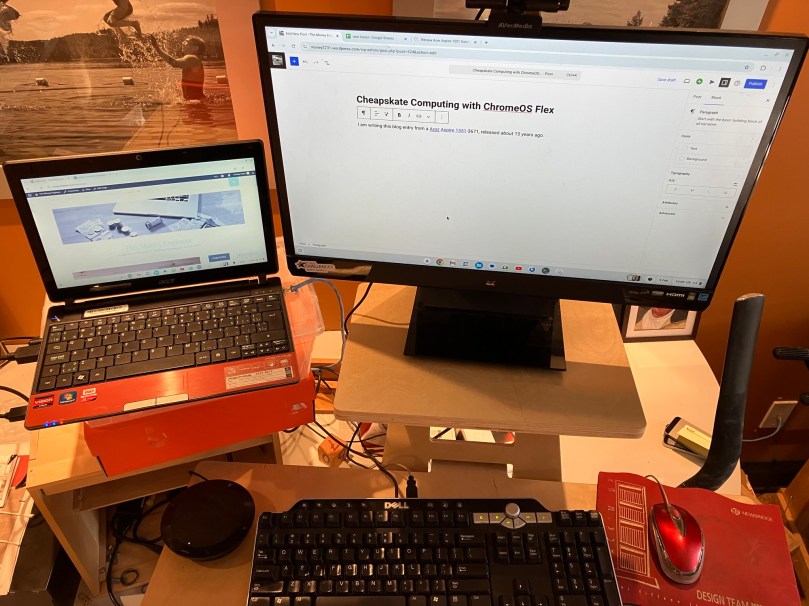
I am writing this blog entry from a Acer Aspire 1551, released about 15 years ago, a time when Windows 7 was the state-of-the-art PC OS. When I took this laptop out of the closet, it had Windows 10 on it, and was essentially unusable because the poor CPU1 just couldn’t eke out enough hamster-wheel turns to make it go. It looked like it was headed to the great bit bucket in the sky2. This caused me a bit of pain, since, after all, I had paid good money for that laptop3.

But then I discovered ChromeOS Flex.45 It seems capable of turning just about any old hardware (PC or Mac, I’ve done both) into something quite usable, if not terribly feature-rich6. Simply put, it’s the operating system used on Chromebooks that have been widely deployed to students everywhere.

And installing it really is quite easy. You just need a USB stick, some other internet-connected computer, and about 30 minutes7 to complete an installation. You can test-drive an installation before committing, too, since you can boot right from the USB stick. All the steps are outlined here.

The result is (more or less) a Chromebook with support for a modern browser (Chrome). And since I write this blog using WordPress, all the tools I need to build this site are accessible from that browser. And of course with Google Sheets, Google Docs and Google Slides (all quite feature-rich from the browser), I have no need for Microsoft Office, either8.

The only investment I made (and even this probably wasn’t strictly necessary) was to purchase a new SSD to replace the creaky old spinning hard drive in the original model. Total cost: $30. The keyboard and mouse are from Value Village9 (about $10 total) and the external monitor I had lying around.

So what’s a ChromeOS Flex machine good for? Off the top of my head,

  • Writing a blog
  • Inexpensive bare-bones laptop to take when traveling
  • Simple laptop/desktop for a favorite relative

If you want to breathe new life into old hardware, then I declare Chrome OS Flex cheapskate-approved. You can see it in action, below:

The Money Engineer’s Retro-Tech Design Environment
  1. An AMD Athlon II Neo X2 K325, no less. I think it had a flux capacitor. ↩︎
  2. City of Ottawa has alternatives: https://ottawa.ca/en/garbage-and-recycling/recycling/waste-explorer ↩︎
  3. The cheapskate refrain! ↩︎
  4. There are of course a plethora of Linux distributions out there for the more adventuresome and/or those with a lot more time on their hands. I’ve played around with a bunch of those, too. But ChromeOS Flex is the simplest installation experience I’ve experienced on a range of computers. On some computers, you can actually get a working Linux shell underneath ChromeOS Flex. ↩︎
  5. “Chrome OS” is what Chromebooks run. “Chrome OS Flex” is what I’m talking about. Similar, but different. Google carefully. ↩︎
  6. You’re probably not editing your Hollywood movie on a Chrome OS Flex machine. ↩︎
  7. Google’s instructions say 5. I think it took me that long to remember how to get into the BIOS so I could boot from the USB stick. ↩︎
  8. Full disclosure, I own shares in Alphabet, Microsoft and 10000 other companies. ↩︎
  9. A most excellent place to get vintage hardware. ↩︎